
How to Solve Xuper TV Login Problems Quickly
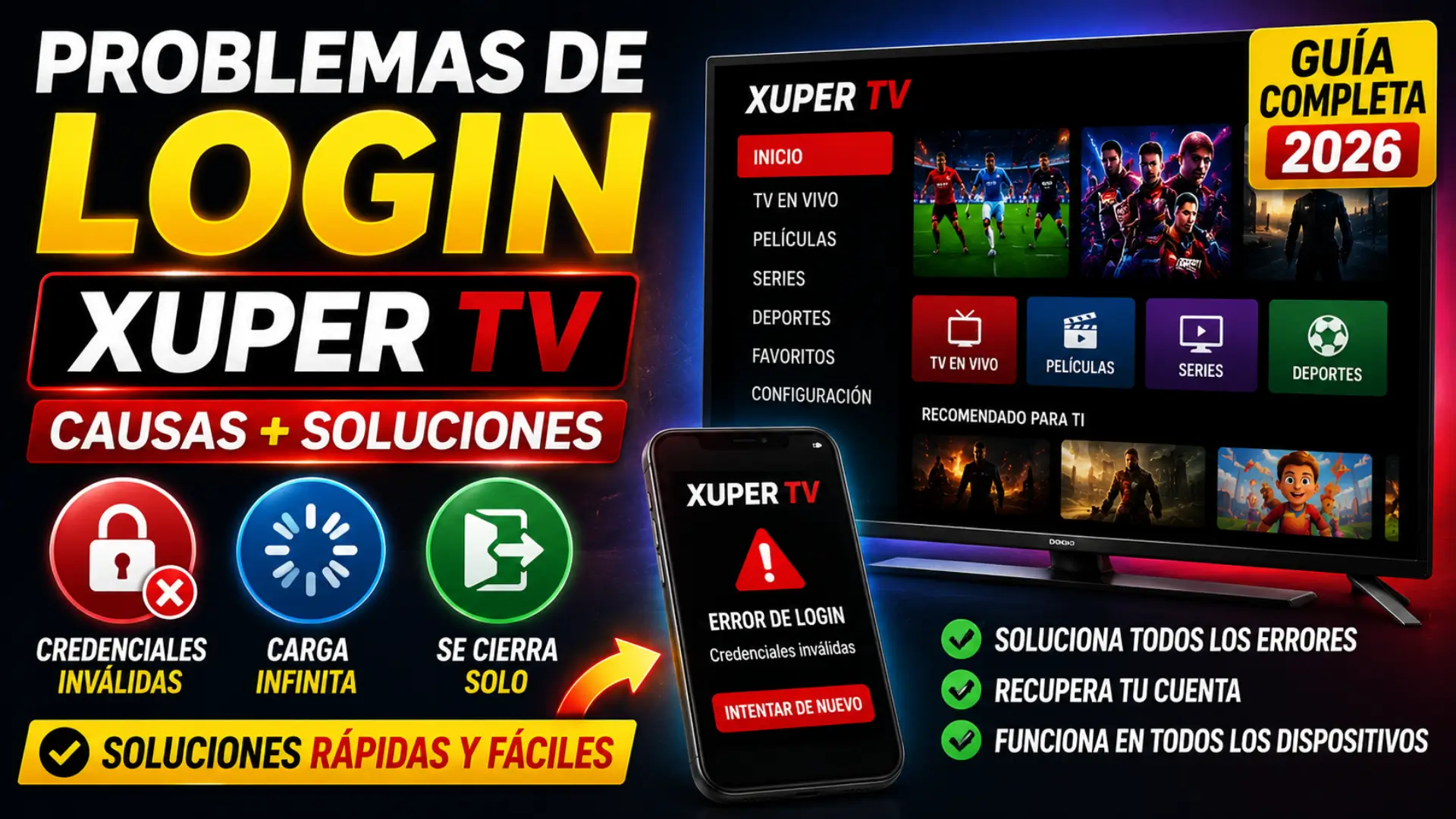
Logging into Xuper TV should only take a few seconds, but sometimes users encounter unexpected login issues that prevent access to their favorite movies, live TV channels, and sports. Whether you’re seeing an “Invalid Credentials” error, stuck on an endless loading screen, or getting logged out repeatedly, these problems are usually easy to fix.
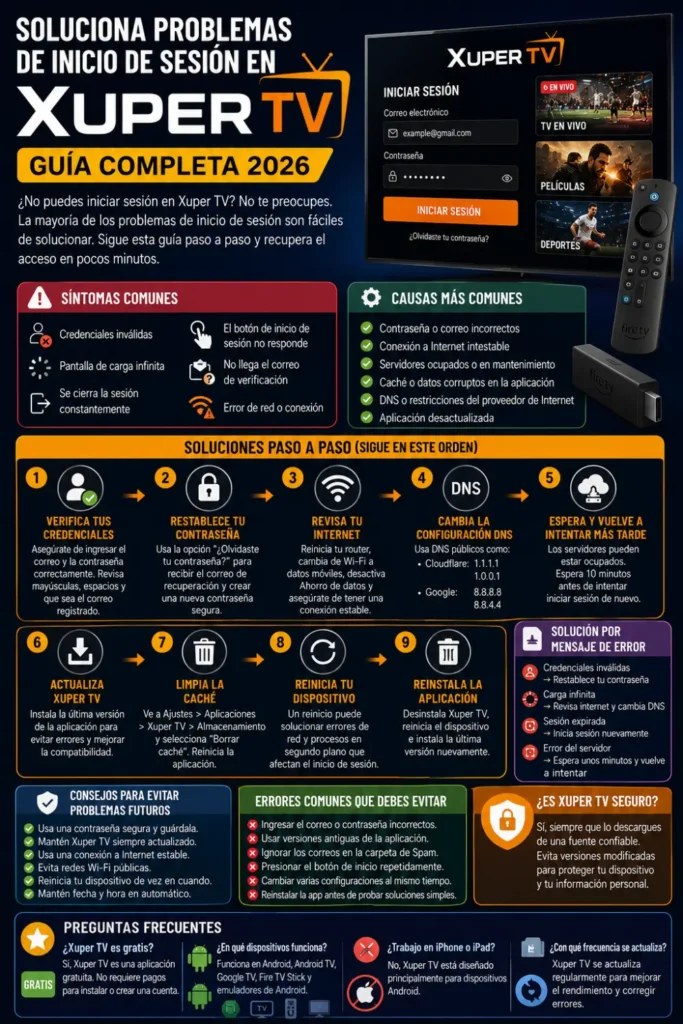
This updated 2026 guide explains the most common Xuper TV login problems, why they happen, and the fastest solutions that work on Android phones, Android TV, Fire TV Stick, Google TV, and Android emulators. Follow the troubleshooting steps below in order, as the first few solutions resolve most login issues.
Why Does Xuper TV Login Fail?
Login problems usually occur because of incorrect account information, temporary server issues, unstable internet connections, or network-related restrictions. In most cases, the app itself isn’t broken—the issue is caused by something that can be fixed within a few minutes.
You can also read: Xuper TV Account Creation Guide
Some login errors are also triggered after app updates, password changes, or regional DNS problems. Identifying the exact symptom helps you apply the correct solution much faster.
Common Xuper TV Login Symptoms
If you’re experiencing any of the following, this guide will help:
- Invalid credentials message
- Endless loading spinner after pressing Login
- Login succeeds but logs out after a few minutes
- App returns to the login screen repeatedly
- Verification email never arrives
- Login button does not respond
- “Something went wrong” error
- Network or server connection error
These symptoms usually point to different underlying causes, which are explained below.
Common Causes of Login Problems
| Problem | Possible Cause | Difficulty to Fix |
|---|---|---|
| Invalid password | Wrong password or email | Easy |
| Endless loading | Slow internet or server load | Easy |
| Frequent logout | Corrupted session or app cache | Easy |
| Login button not working | Outdated app version | Easy |
| Email not received | Spam folder or email delay | Easy |
| Network error | DNS or ISP restrictions | Medium |
| Unable to connect | Temporary server maintenance | Easy |
How to Fix Xuper TV Login Problems
1. Verify Your Login Credentials
The most common reason for login failure is entering an incorrect email address or password. Even a small typing mistake can prevent authentication.
Before trying other fixes, carefully re-enter your login details. Make sure Caps Lock is disabled, remove accidental spaces, and confirm you’re using the same email address that was used during registration.
2. Reset Your Password
If you’re unsure about your password, resetting it is the quickest solution.
Follow these steps:
- Open the Xuper TV login page.
- Tap Forgot Password.
- Enter your registered email address.
- Open the reset email.
- Create a new strong password.
- Log in again using the updated password.
If you don’t receive the email within a few minutes, check your Spam or Junk folder before requesting another reset.
3. Check Your Internet Connection
A weak or unstable connection may prevent the app from contacting the login servers.
Try these quick checks:
- Restart your Wi-Fi router.
- Switch between Wi-Fi and mobile data.
- Disable Data Saver mode.
- Test another website or streaming app.
- Restart your device.
A stable internet connection is required before attempting to log in again.
You can also read: Xuper TV Linux Setup Guide
Change Your DNS Settings
Sometimes your Internet Service Provider blocks or slows DNS requests, preventing Xuper TV from reaching its authentication servers.
You can switch to a public DNS service:
- Cloudflare DNS: 1.1.1.1 and 1.0.0.1
- Google DNS: 8.8.8.8 and 8.8.4.4
Changing DNS often improves connection speed and resolves regional lookup issues without affecting your account.
Wait and Try Again Later
Login servers occasionally become busy during peak usage or while maintenance is in progress. Multiple failed attempts within a short period may also trigger temporary rate limiting.
If you’ve already confirmed your password is correct, wait about 10 minutes before trying again instead of repeatedly pressing the Login button.
Update Xuper TV
Older versions of the app may have compatibility problems with newer authentication systems or contain bugs that have already been fixed.
Install the latest version of Xuper TV, restart your device, and attempt to log in again. Keeping the app updated also improves performance and security.
Clear App Cache
Corrupted temporary files can interfere with the login process.
On Android devices:
- Open Settings
- Select Apps
- Choose Xuper TV
- Open Storage
- Tap Clear Cache
- Restart the app
If clearing the cache doesn’t help, you can also clear app data. Just remember that you’ll need to sign in again afterward.
Restart Your Device
A simple restart refreshes network services, clears temporary memory issues, and closes background processes that may interfere with the login system.
Restart your Android phone, Android TV, Fire TV Stick, or streaming device before attempting another login.
Reinstall the Application
If login problems continue after trying the previous steps, reinstalling the app can replace damaged files and restore normal functionality.
Follow these steps:
- Uninstall Xuper TV.
- Restart the device.
- Install the latest version.
- Open the app.
- Sign in with your account.
This solution resolves many persistent software-related issues.
Troubleshooting by Error Message
| Error Message | Recommended Solution |
|---|---|
| Invalid Credentials | Reset password and verify email |
| Endless Loading | Check internet and change DNS |
| Session Expired | Log in again and clear cache |
| Login Failed | Update the app and restart device |
| Server Error | Wait 10 minutes and retry |
| Verification Email Missing | Check Spam folder and request another email |
Tips to Prevent Future Login Problems
A few simple habits can help you avoid login issues in the future.
- Save passwords using a trusted password manager.
- Keep Xuper TV updated.
- Use a stable internet connection.
- Avoid logging in through public Wi-Fi captive portals.
- Don’t repeatedly enter incorrect passwords.
- Restart your streaming device occasionally.
- Keep your device’s date and time set automatically.
Following these best practices reduces the chance of authentication problems.
Common Mistakes to Avoid
Many users accidentally make troubleshooting more difficult by repeating the same unsuccessful steps.
Avoid these common mistakes:
- Entering the wrong email address.
- Using an outdated version of the app.
- Ignoring password reset emails in Spam.
- Pressing the Login button repeatedly.
- Changing multiple settings at once without testing.
- Reinstalling before trying simpler fixes.
Testing one solution at a time makes it much easier to identify the real cause.
You can also read: Install Xuper TV on Fire TV Stick
Frequently Asked Questions
Is Xuper TV free to use?
Yes. Xuper TV is available as a free APK. It does not require subscription fees during installation or account creation.
Is Xuper TV safe to install?
Xuper TV should always be downloaded from a trusted and verified source. Installing the latest version helps reduce compatibility issues and ensures you receive recent bug fixes.
Which Android version is required?
The latest version generally works on most modern Android devices running supported Android releases. Older operating systems may experience compatibility limitations.
Does Xuper TV work on iPhone or iPad?
No. Xuper TV is designed primarily for Android-based devices, including Android phones, Android TV, Google TV, Fire TV Stick, and compatible Android emulators.
How often is Xuper TV updated?
The app is updated regularly to improve stability, enhance streaming performance, fix bugs, and maintain compatibility with newer Android devices.
Can I use Xuper TV without a VPN?
Yes. In most regions, Xuper TV works without a VPN. If login or connectivity issues occur because of DNS or ISP routing problems, switching to a reliable public DNS is usually sufficient before considering other network solutions.
Conclusion
Most Xuper TV login problems can be resolved within a few minutes by checking your login credentials, resetting your password, updating the app, clearing the cache, or changing your DNS settings. Temporary server congestion and unstable internet connections are also common causes, so waiting a few minutes before trying again can often solve the issue.
By following the troubleshooting steps in this guide—from the simplest fixes to more advanced solutions—you can quickly regain access to your Xuper TV account and continue enjoying uninterrupted streaming on your favorite device.