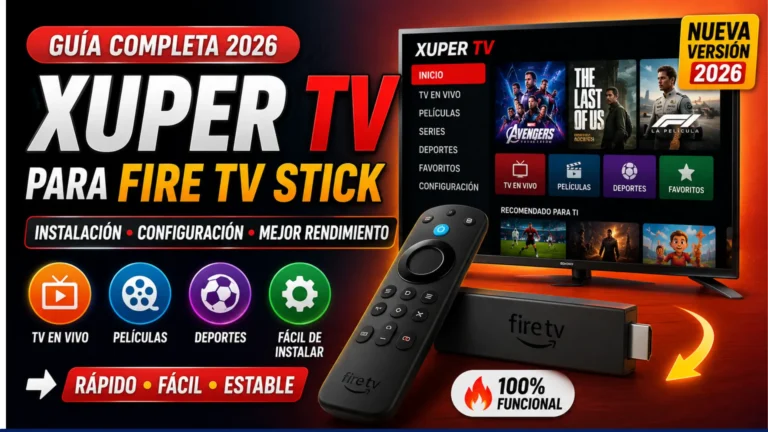
How to Install and Use Xuper TV on Android Devices in 2026
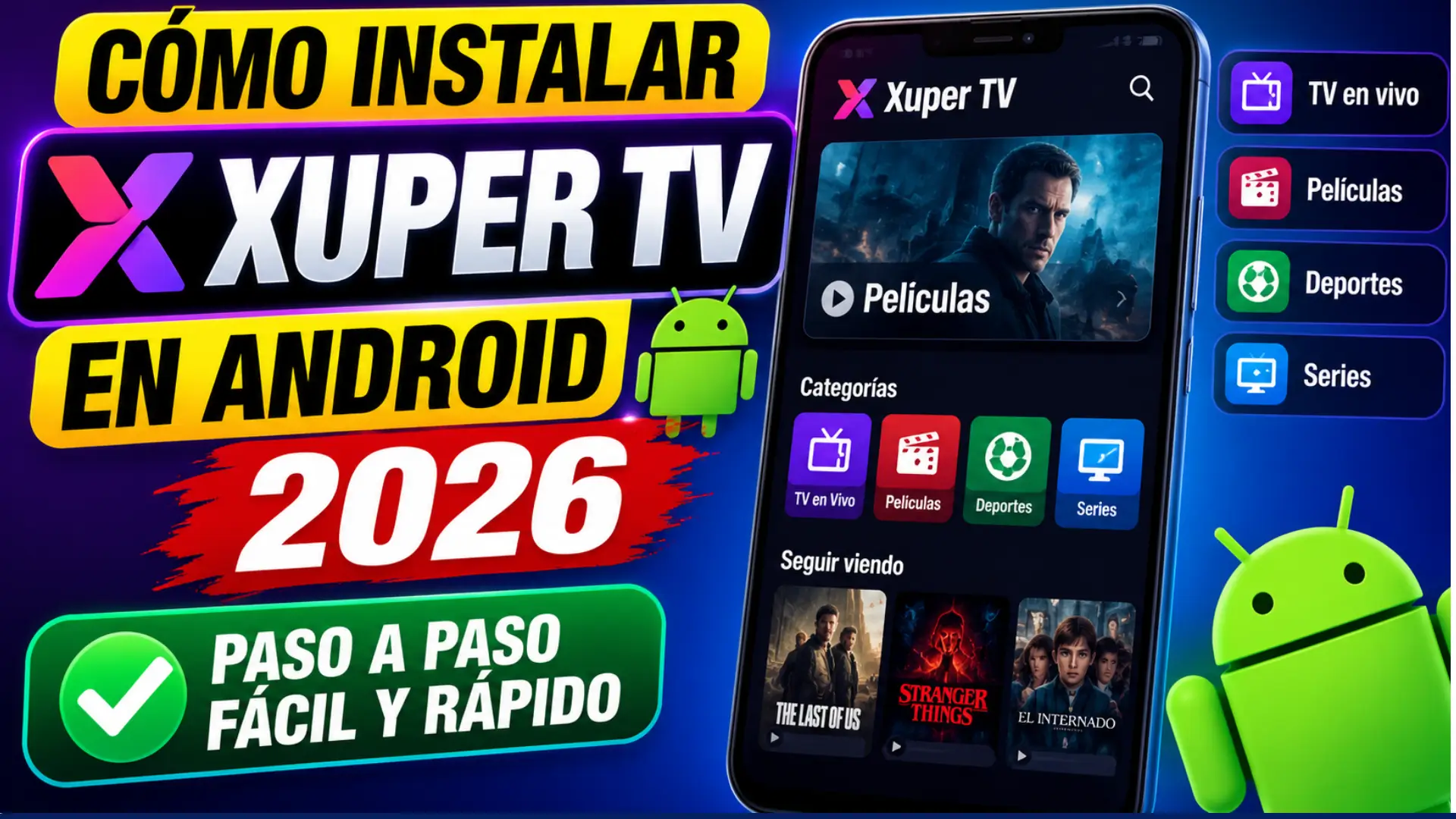
Android remains the most popular platform for streaming entertainment, and Xuper TV continues to be one of the preferred applications for watching live TV, movies, sports, and TV shows on mobile devices. Whether you’re using an Android smartphone or tablet, the app provides a simple interface and smooth streaming experience when installed correctly.
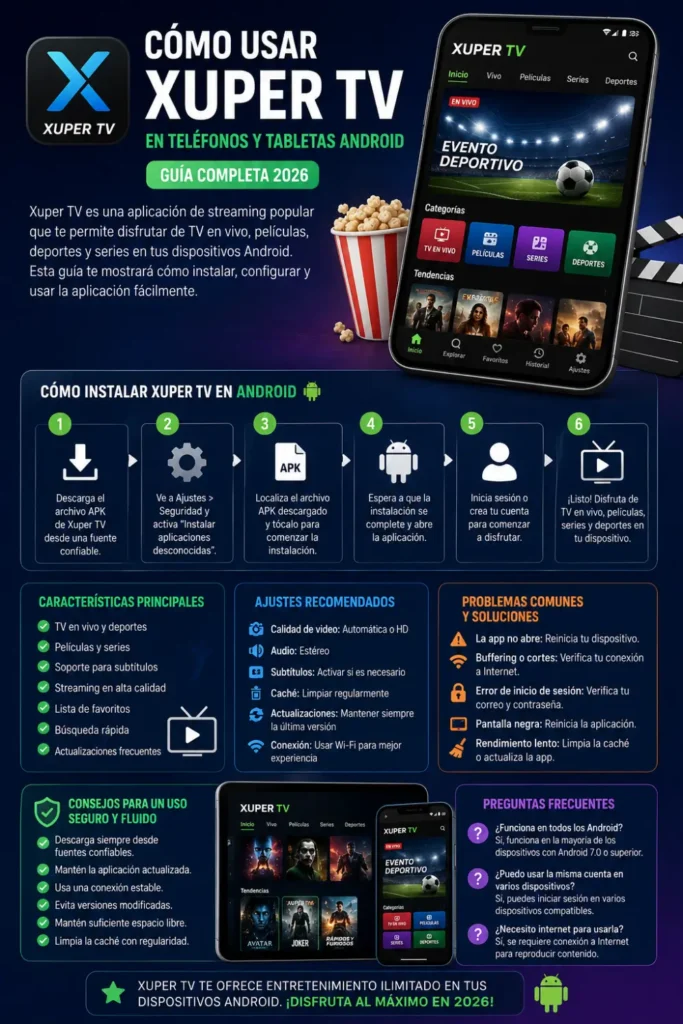
This complete 2026 guide explains how to install Xuper TV on Android devices, set it up properly, customize the settings, and use its features effectively. You’ll also learn useful tips, common mistakes to avoid, and simple troubleshooting methods for a better viewing experience.
What is Xuper TV?
Xuper TV is a streaming application designed for Android-powered devices, allowing users to access various entertainment content through a single platform. It is compatible with Android smartphones, tablets, Android TV, TV boxes, and several other Android-based devices.
You can also read: Install Xuper TV on Fire TV Stick
The app is known for its lightweight design, user-friendly navigation, and customizable playback settings. Regular updates also improve stability, streaming performance, and compatibility with newer Android versions.
Android Requirements for Xuper TV
Before installing the application, make sure your Android device meets the recommended requirements.
| Requirement | Recommended |
|---|---|
| Operating System | Android 7.0 or later |
| RAM | 2 GB minimum (3 GB+ recommended) |
| Free Storage | At least 200 MB |
| Internet Speed | 10 Mbps or faster |
| Screen Size | Any Android phone or tablet |
Meeting these requirements helps reduce crashes, buffering, and playback issues.
How to Download and Install Xuper TV on Android
Installing Xuper TV is straightforward when using a trusted download source. Always install the latest available version to receive performance improvements, bug fixes, and security enhancements.
Installation Steps
- Download the latest Xuper TV APK.
- Open Settings > Security.
- Enable Install Unknown Apps (if required).
- Locate the downloaded APK file.
- Tap Install.
- Wait for the installation to finish.
- Open Xuper TV.
- Sign in or create your account.
Once installed, you can disable the unknown app installation permission again for additional device security.
How to Create Your Xuper TV Account
Creating an account allows you to personalize your streaming experience and access your preferences across supported devices.
When registering, use a valid email address and create a strong password. This helps you recover your account if you ever forget your login details. After verifying your information, simply log in and start exploring the application.
How to Use Xuper TV on Android Devices
After opening the application for the first time, spend a few minutes exploring the interface. The home screen usually displays featured content, categories, recently watched videos, and search options for quick navigation.
To start streaming, search for your preferred movie, TV channel, sports event, or series, then tap the title to begin playback. Most users can also adjust video quality, subtitles, and audio directly from the player for a more personalized experience.
Basic Navigation
- Browse categories from the home screen.
- Use the search feature to find content quickly.
- Mark favorites for faster access later.
- Continue watching from your recent history.
- Adjust playback speed if available.
- Enable subtitles when supported.
Learning these basic functions makes daily use much easier.
You can also read: Xuper TV Linux Setup Guide
Key Features of Xuper TV
Xuper TV includes several features that improve convenience and streaming quality on Android devices.
Popular Features
- Live TV streaming
- Movies and TV shows
- Sports content
- Search functionality
- Favorites list
- HD streaming support
- Subtitle support
- Multiple language options
- Playback controls
- Regular application updates
These features may vary slightly depending on the app version and your device.
Best Settings for Better Streaming
Proper settings can significantly improve video quality while reducing buffering and battery usage.
For the best experience, choose a video quality that matches your internet speed. If your connection is slow, lowering the resolution provides smoother playback. Keeping subtitles enabled only when needed and clearing cached files occasionally can also improve performance.
Recommended Settings
| Setting | Recommendation |
|---|---|
| Video Quality | Auto or HD |
| Audio | Stereo |
| Subtitles | Enable when required |
| Cache | Clear regularly |
| App Updates | Always install latest version |
| Wi-Fi | Use for HD streaming |
These settings offer a good balance between performance and streaming quality.
Common Problems and Quick Fixes
Most Android users experience only minor issues, and they are usually easy to solve without reinstalling the app.
Common Issues
| Problem | Solution |
|---|---|
| App won’t open | Restart the device |
| Buffering | Check internet speed |
| Login error | Verify email and password |
| Black screen | Restart the application |
| Slow performance | Clear app cache |
| App crashes | Update to the latest version |
If problems continue after trying these solutions, restarting your device often resolves temporary system issues.
Xuper TV on Android Phones vs Tablets
The application works similarly on both smartphones and tablets, but larger tablet screens provide a more comfortable viewing experience and improved navigation.
| Feature | Android Phone | Android Tablet |
|---|---|---|
| Screen Size | Compact | Large |
| Portability | Excellent | Good |
| Movie Viewing | Good | Better |
| Multitasking | Limited | Easier |
| Navigation | Simple | More spacious |
Both devices provide the same core features, so choosing between them mainly depends on your preferred viewing experience.
Tips for Safe and Smooth Streaming
Following a few simple practices helps improve both security and performance.
Best Practices
- Download only from trusted sources.
- Keep the application updated.
- Use a stable Wi-Fi connection for HD streaming.
- Avoid installing modified versions.
- Clear cache occasionally.
- Restart the app if playback becomes slow.
- Keep sufficient storage available.
These habits help maintain smoother streaming over time.
You can also read: Xuper TV Account Creation Guide
Common Mistakes to Avoid
Many installation and playback issues happen because of small user mistakes rather than application problems.
Avoid These Errors
- Installing outdated APK versions.
- Using incorrect login information.
- Ignoring application updates.
- Running with very little free storage.
- Using unstable mobile data for HD streaming.
- Closing the app during updates.
Avoiding these mistakes improves reliability and reduces technical issues.
Frequently Asked Questions
Can I install Xuper TV on any Android phone?
Yes. Most Android smartphones running Android 7.0 or newer can install and use the application successfully.
Does Xuper TV work on Android tablets?
Yes. Android tablets support the same features as Android phones, with the added advantage of a larger display for watching videos.
Is an internet connection required?
Yes. A stable internet connection is necessary for streaming content and accessing online features.
How do I improve streaming quality?
Use a reliable Wi-Fi connection, update the app regularly, clear the cache occasionally, and select the appropriate video quality for your internet speed.
Can I use the same account on multiple Android devices?
In many cases, you can sign in with the same account on compatible Android devices, although available features or simultaneous usage may depend on your account or app version.
You can also read: Install Xuper TV APK on Android
Conclusion
Installing and using Xuper TV on Android devices in 2026 is a simple process when you follow the correct setup steps. After installing the latest version, creating your account, and adjusting the recommended settings, you can enjoy a smoother streaming experience on both Android phones and tablets.
Keeping the application updated, using a stable internet connection, and following basic maintenance practices such as clearing the cache and avoiding outdated versions will help ensure consistent performance. Whether you’re streaming live TV, movies, or sports, understanding the app’s features and settings allows you to get the most out of Xuper TV on your Android device.