
Xuper TV Login Required? What You Should Know Before Signing In
Xuper TV Login Required
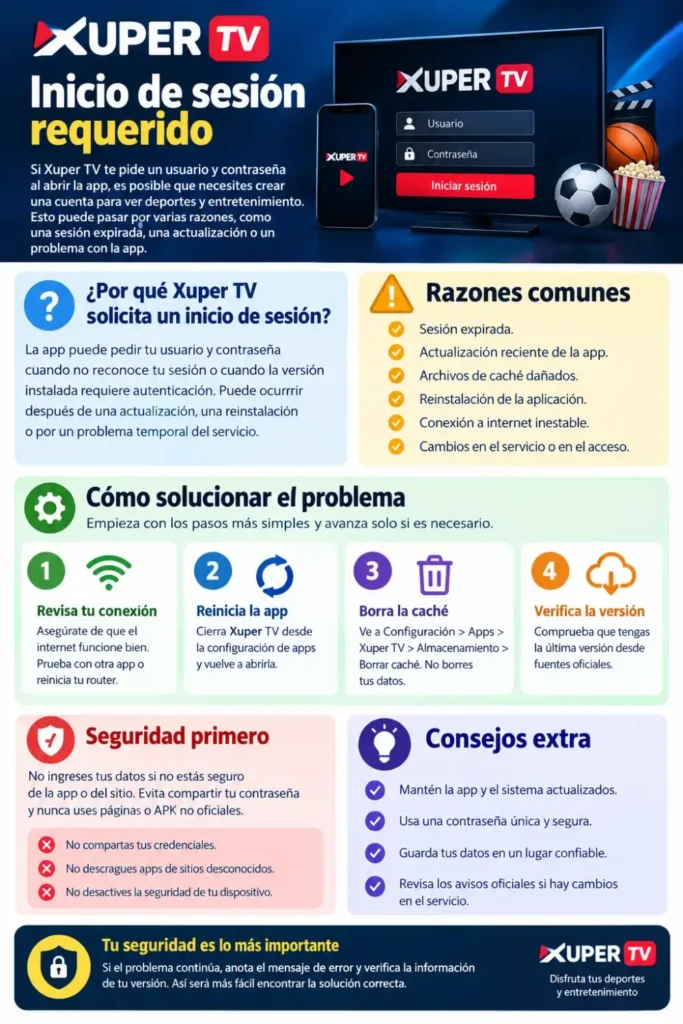
If the Xuper TV login option is displayed when you open the app, you need to create an account to watch sports and entertainment. The user name and password to create an account can appear for various reasons, including a timed out session, application update, corrupted temporary files, or how the installed version handles access.
Before entering any information, it is important to thoroughly check what the login screen means and what you can do with the app and how you can log in to it. This guide explains the common reasons for Xuper TV login requests, the steps to resolve various issues, and important security precautions to consider before signing in.
Why Does Xuper TV Require a Login?
Xuper TV may request a username and password when it cannot recognize an existing session or when the installed version requires authentication before opening certain features. If you previously used the app without signing in, a new login screen may seem unexpected, especially if it appears after an update or reinstallation.
However, the login screen alone does not confirm the exact cause. It could be related to the app’s configuration, a temporary technical issue, an account requirement, or a change in the service. Checking when the problem started can help you decide which troubleshooting step to try first.
Common Reasons for a Xuper TV Login Request
Several situations may explain why the app suddenly asks for your credentials:
- Expired session: Your previous login session may no longer be valid.
- Recent update: An updated version may handle account sessions differently.
- Corrupted cache: Temporary files may prevent the app from loading correctly.
- Reinstallation: Removing and reinstalling the app may erase saved session information.
- Connection problems: An unstable internet connection may interrupt authentication.
- Service-side changes: The service may have changed its access requirements or may be experiencing a temporary problem.
Identifying the most likely cause helps you avoid unnecessary actions, such as repeatedly reinstalling the application or deleting stored information.
You can also read: Xuper TV 4.34.3 Version
Does Xuper TV Require an Account?
Whether Xuper TV requires an account depends on the version you have installed and how its access system is configured. Some versions or services may display a login form before allowing access, while others may offer different options. Without reliable documentation for your specific version, it is not possible to confirm that every installation follows the same login process.
Look carefully at the screen for options such as Register, Sign In, Forgot Password, or Continue as Guest. Only use an option that is actually provided by the application or its verified service provider. If the app requires an account, check its official documentation to understand the registration process rather than entering random credentials.
What to Check Before Signing In
Before submitting a username or password, make sure the login screen belongs to the application you intended to open. xuper tv descargar An unexpected request for personal information deserves attention, particularly if it appears after installing an unfamiliar version or downloading the app from an unknown website.
Use the following checklist to assess the situation:
- Confirm the app’s name and installed version.
- Check whether the application came from a source you trust.
- Look for an official account registration or password recovery option.
- Read any message explaining why authentication is required.
- Avoid credentials shared through public forums or unofficial websites.
- Never provide your email password, banking details, or verification codes unless there is a clearly verified and legitimate reason.
If you cannot verify the source of the login request, do not enter sensitive information until you have checked it.
How to Fix Xuper TV Login Problems
The best approach is to start with simple troubleshooting methods and move to more significant changes only when necessary. Restarting the app, checking the network, and clearing temporary files can resolve some technical problems without affecting your saved settings.
The steps below mainly apply to Android phones, Android TV devices, and compatible TV boxes. Menu names may differ depending on the device manufacturer and Android version. xuper tv me pide cuenta y contraseña que hago
Check Your Internet Connection
A weak or unstable connection may prevent Xuper TV from communicating with its authentication service. Even if other apps open normally, the service required by Xuper TV may still be unavailable.
Try these basic checks:
- Open another app that requires an internet connection.
- Test whether websites load normally.
- Restart your router if several apps have connection problems.
- Switch between Wi-Fi and mobile data when appropriate.
- Reopen Xuper TV after the connection becomes stable.
If the same login error continues while other internet services work correctly, the issue may be related to Xuper TV rather than your network.
Restart Xuper TV
Restarting the application can stop a temporary process error and allow it to start again with a fresh session. This is a useful first step because it does not normally remove saved application data.
On most Android devices, follow these steps:
- Open Settings.
- Select Apps or Applications.
- Find and select Xuper TV.
- Tap Force stop.
- Wait a few seconds.
- Open the app again.
If the login screen still appears, restart your device and check whether the problem remains.
Clear the App Cache
Cached files help applications load frequently used information more quickly. However, outdated or corrupted temporary files can sometimes interfere with normal operation.
To clear the cache, open Settings > Apps > Xuper TV > Storage > Clear cache. The exact path may vary by device. After clearing the cache, launch the application again and check whether the login request has changed.
Important: Clearing the cache is different from clearing app storage or data. Clearing data may remove saved settings, login sessions, and other local information. Start with the cache and avoid deleting app data unless you understand the consequences.
Check the Installed Version
An outdated or incorrectly installed version may behave differently from the version you previously used. Similarly, if the login problem began immediately after an update, the update may be relevant to the issue.
Check the version number in the app settings or your device’s application information. Compare it with information from a verified source associated with the application. Avoid installing unknown files simply because a website claims they will remove the login requirement.
If the issue started after an update, check whether the developer has published any information about login changes or known technical problems.
What If Your Xuper TV Username or Password Does Not Work?
If Xuper TV rejects your credentials, first check for typing mistakes, accidental spaces, and differences between uppercase and lowercase letters where applicable. Make sure you are using the account details associated with the correct service or application version.
If you have forgotten your password, use the app’s official recovery option if one is available. If there is no recovery feature, consult verified support or documentation for the service. Avoid repeatedly guessing passwords or using credentials advertised as free accounts on unrelated websites.
Login Problem vs. Possible Cause
| Problem | Possible explanation | Recommended action |
|---|---|---|
| Login screen appears unexpectedly | Session expired or access requirements changed | Check the app’s official information |
| Username or password is rejected | Incorrect credentials or account issue | Verify details and use official recovery |
| Login keeps repeating | Session-saving problem or app error | Restart the app and clear the cache |
| Login fails despite a working connection | Authentication service or version issue | Check official service information |
| Problem begins after an update | Version compatibility or changed behavior | Verify the version and update notes |
| App closes during login | Application error or device limitation | Restart the device and check available storage |
These are possible explanations rather than confirmed diagnoses. The exact error message can help narrow down the cause.
Is It Safe to Enter Your Login Details?
You should only enter credentials when you have a reasonable basis for trusting the application and the service requesting them. A login page that promises free access, premium features, or instant activation is not automatically legitimate.
Be particularly cautious when an unfamiliar website asks you to download an APK, enter personal details, disable security protections, or use credentials supplied by strangers. Such requests may expose your information or your device to unnecessary risks.
Follow these security practices:
- Download applications from trusted sources whenever available.
- Use a unique password for each account.
- Never share passwords or one-time verification codes.
- Avoid login pages that imitate another service.
- Do not disable device security protections to bypass a login requirement.
- Remove suspicious applications and review their permissions if you believe your information may be at risk.
If you have already entered a reused password on a suspicious page, change it on the legitimate account and review any relevant account security settings.
You can also read: Xuper TV APK Smart TV 4.34.5 Free
Xuper TV Login Issues on Android TV and TV Boxes
Login problems are not limited to mobile phones. Android TV devices and TV boxes can also experience session errors, application crashes, connection issues, or problems caused by limited storage.
The troubleshooting process is similar, although the settings menu may look different. Open the device settings, locate the application, force-stop it, and clear its cache. Then restart the device and check the internet connection before opening Xuper TV again.
If the problem continues, check whether your device supports the installed application version. Avoid installing modified versions or following instructions that require disabling important security features.
Common Mistakes to Avoid When Fixing Login Problems
Trying several fixes at once can make it harder to identify the real cause. Some changes may also remove information that you need to access your account again.
Avoid these common mistakes:
- Clearing all app data too early: This may erase local settings and the saved session.
- Reinstalling immediately: Reinstallation may not solve an account or service-side problem.
- Using random credentials: Unverified usernames and passwords may be unsafe or ineffective.
- Downloading unofficial updates: Unknown installation files can create security risks.
- Ignoring error messages: The exact wording may help distinguish a connection problem from a login failure.
- Assuming the service is permanently unavailable: A temporary interruption may resolve without further changes.
Start with reversible troubleshooting steps and make one change at a time.
Tips to Prevent Future Login Issues
Although not every authentication problem can be prevented, a few habits can reduce unnecessary errors and protect your account. Keep the device updated, maintain enough free storage, and use a stable internet connection.
For better results, follow these practices:
- Keep a record of the installed app version.
- Use verified update sources.
- Store account credentials securely.
- Avoid clearing app storage unless necessary.
- Check for official notices when login behavior changes.
- Restart the app if it begins behaving unexpectedly.
- Make sure your device’s date and time are correct if authentication errors continue.
If the same account fails on multiple compatible devices, a service-side issue becomes more plausible. However, this does not prove that the service is responsible; account restrictions or other authentication problems may produce similar symptoms.
Frequently Asked Questions
Conclusion
If Xuper TV requires a login, the first step is to determine whether the request is expected or due to a technical issue. Check your internet connection, restart the application, clear its cache, and verify the installed version before attempting any more significant changes.
You can also read: Xupers TV Official Check Magis TV
Most importantly, don’t assume that every login screen can be bypassed or that every version supports access without an account. Use verified recovery options, protect your credentials, and avoid unknown websites that offer shared passwords or modified applications. If the problem persists, the exact error message and information about the version you have installed can help identify the appropriate next step.